
Managing Buyer Promotions in AMP
Overview
Buyer Promotions is an Admin-only tool inside AMP's CMS that lets you create automated discounts or promo codes for your buyers. Promotions can lower a buyer's order total or discount specific line items within their order.
Buyer Promotions apply only to orders placed through your AMP B2B website by your dealers/buyers — this is separate from and does not affect your sales reps using the AMP iPad app.
You can mix and match order eligibility rules, discount types, and discount targets to build a wide range of promotion styles, from simple percentage-off codes to category-specific automatic discounts.
Accessing Buyer Promotions
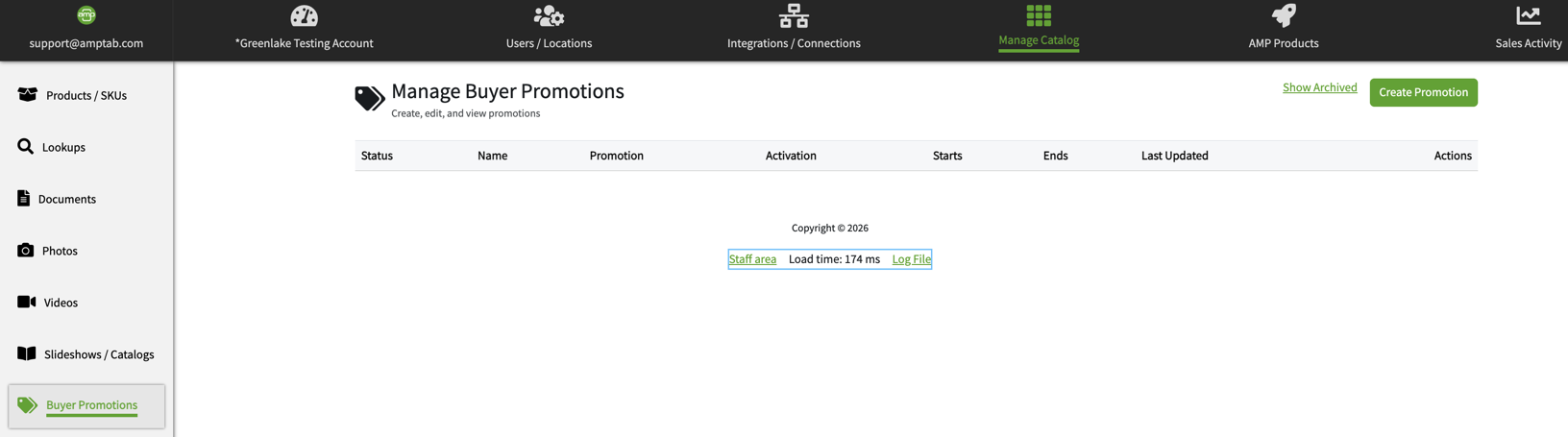
Go to Manage Catalog, then select Buyer Promotions from the left-hand menu (listed alongside Products/SKUs, Documents, Photos, and Videos).
Creating a Promotion
Click Create Promotion to open the promotion builder. There are three sections to fill out: Promotion Details, Order Eligibility, and Discount.
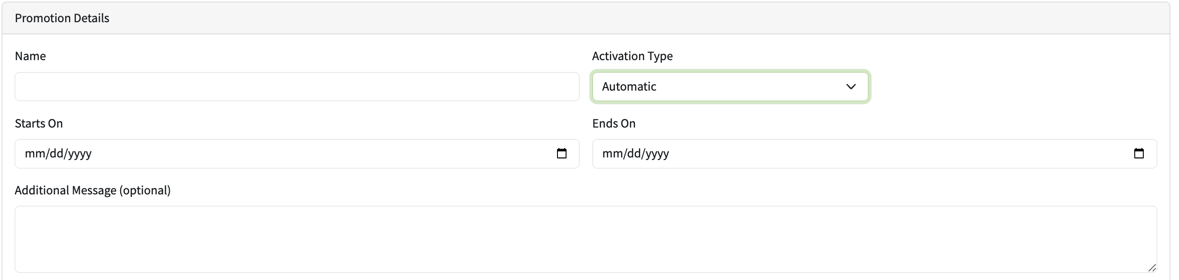
Promotion Details
- Name — an internal name to help you identify the promotion in the list
- Activation Type— choose how the promotion is triggered:
- Automatic — applies automatically once a qualifying order/cart meets the conditions you set
- Code — buyers must enter a promo code at checkout; selecting Code reveals a Promotion Code field
- Starts On / Ends On — the active date window for the promotion
- Additional Message (optional) — a message shown to the buyer, useful for explaining the offer (e.g. "Enjoy a discount on all orders over $2,000")
Order Eligibility
Set which orders qualify:
- All Orders — every order is eligible
- Specific Orders— restrict eligibility using one or more minimums:
- Minimum Subtotal
- Minimum Quantity
- Minimum Cubes

Discount
- Discount Type — Percentage or Fixed Amount
- Discount Value — the percentage or dollar amount to discount
- Discount Target— where the discount is applied:
- Cart — discounts the order total
- Line Item — discounts specific items in the order; selecting Line Item reveals a LineItemFilterByfield with these options:
- Category
- Collection
- SKU
- Pricelist
- Selecting Category, Collection, or Pricelist reveals a corresponding dropdown populated with known values from your product table, so you can select which ones the discount applies to. Selecting SKU instead reveals an open text field where you can enter one SKU per row.

Saving and Publishing
At the bottom of the builder, you have two options:
- Save as Draft — saves your work without making the promotion live
- Save & Publish — publishes the promotion according to its Start/End dates
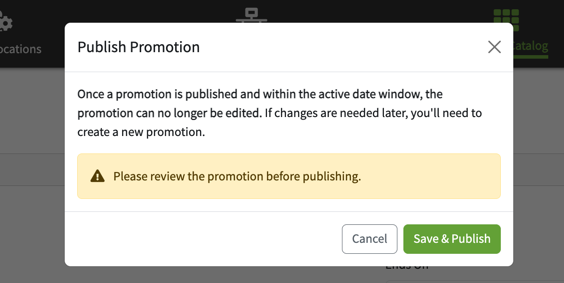
When you click Save & Publish, a confirmation window appears reminding you to review the promotion, since edits become limited once it's live. Click Save & Publish again to confirm, or Cancel to go back.
The Promotions List
Once you've created a promotion, it appears on the main Buyer Promotions screen along with every other promotion you've built.
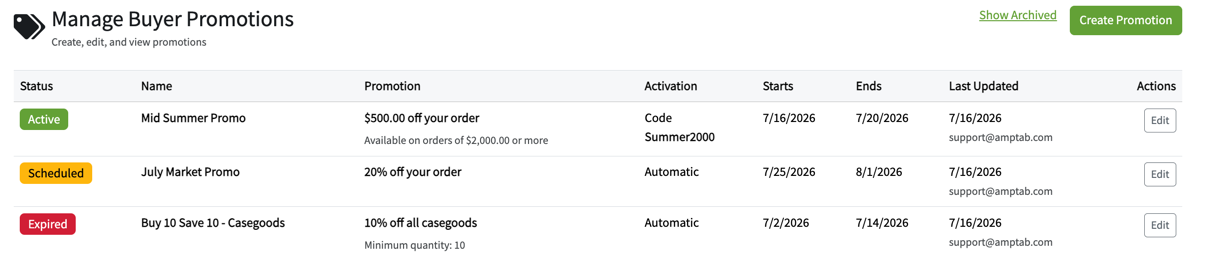
The list includes:
| Column | Description |
|---|---|
| Status | The promotion's current state (see Statuses below) |
| Name | The internal name you gave the promotion |
| Promotion | A summary of what the promotion does (e.g. "20% off your order") and any qualifying conditions |
| Activation | How the promotion is triggered — Automatic or Code |
| Starts | The date the promotion becomes active |
| Ends | The date the promotion ends |
| Last Updated | Date and user who last modified the promotion |
| Actions | Edit button to open the promotion |
Click Show Archived to view promotions that have been archived out of the main list.
Promotion Statuses
| Status | Meaning |
|---|---|
| Draft | Saved but not yet published |
| Scheduled | Published, but the start date hasn't arrived yet |
| Active | Currently running and available to buyers |
| Expired | The end date has passed |
| Archived | Hidden from the default list view; visible only via Show Archived |
Editing an Existing Promotion
What you can edit depends on the promotion's current state:
| Promotion state | What can be edited |
|---|---|
| Not yet started (Draft or Scheduled) | All fields are fully editable |
| Active | Only the Additional Message and Ends On fields are editable |
| Ended (Expired) | Nothing — the promotion is locked and cannot be edited |
While editing an active promotion, you can also click End Promotion to end it immediately, ahead of its original end date.
Tips
- Use Specific Orders minimums to encourage larger orders — for example, a fixed-dollar discount that only kicks in above a minimum subtotal.
- Code-activated promotions are a good fit for market events or campaigns where you want to control exactly who redeems the offer.
- Since most fields lock once a promotion goes Active, double-check your dates, discount value, and eligibility rules before publishing.
- Remember that Buyer Promotions only affect orders placed on your AMP B2B website — they have no impact on rep-entered orders through the iPad app.