
Overview
The Documents screen gives you a centralized place to store, organize, and control access to files within your AMP catalog. You can build a nested folder structure, upload files directly from your computer, and manage permissions — all from one screen.
Uploading Files
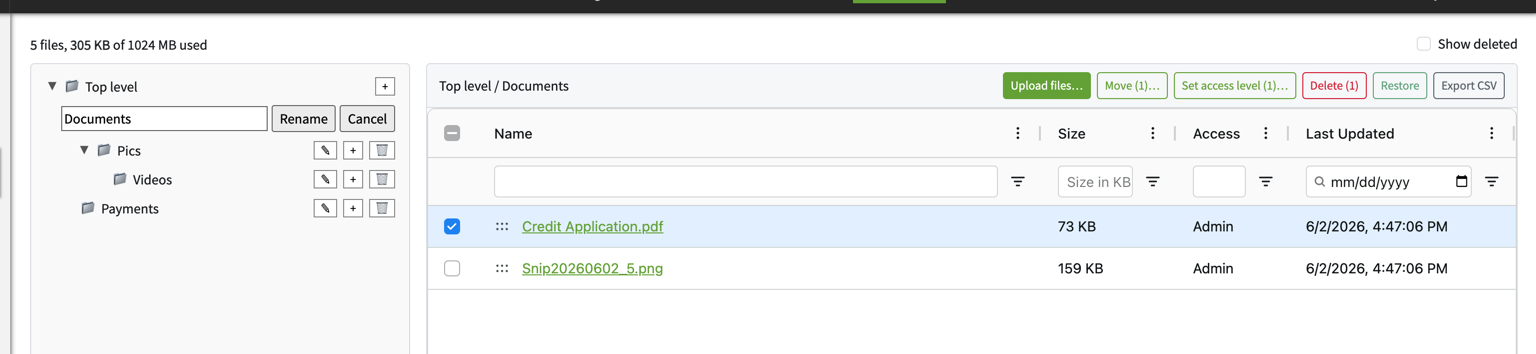
Click the green Upload files... button in the top-right of the file panel to upload files from your computer.
You can also drag and drop files directly from your computer into AMP, or drag and drop files between folders within the panel.
The Folder Panel (Left Side)
The left panel displays your folder tree. Folders can be nested inside one another to create whatever organizational structure works for your business.
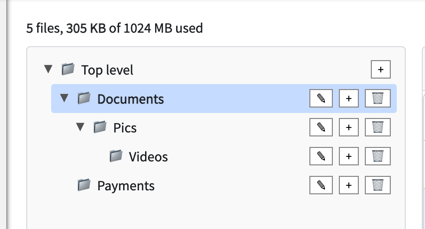
Each folder has three action icons:
| Icon | Action |
|---|---|
| Pencil | Rename the folder — an inline text field appears with Rename and Cancel buttons |
| Plus (+) | Create a new folder or subfolder inside that folder |
| Trash | Delete the folder |
To navigate into a folder and view its contents, simply click on it. The file panel on the right will update to show that folder's files.
The File Panel (Right Side)
The file panel shows all files within the currently selected folder. Each file displays:
- Name — click the file name to open or preview it
- Size — file size in KB
- Access — the current permission level assigned to the file
- Last Updated — date and time of the most recent change
You can filter, search, and sort by any of these columns using the column controls.
Selecting Files (Checkboxes)
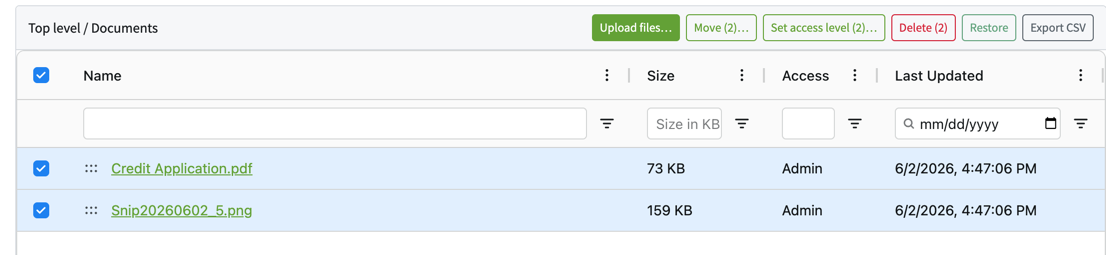
Check the box to the left of any file to select it. You can select multiple files at once. Once one or more files are selected, the following bulk action buttons become available:
- Move (n)... — move the selected files to a different folder
- Set access level (n)... — update the permission level for the selected files
- Delete (n) — delete the selected files
- Restore — restore previously deleted files
- Export CSV — export the file list as a CSV
Use the checkbox in the header row to select or deselect all files at once.
Setting Access Levels
Select one or more files using the checkboxes, then click Set access level to choose who can access them. The available levels are:
| Access Level | Description |
|---|---|
| Admin | Visible to admin users only |
| Rep | Visible to sales reps and admins |
| Buyer | Visible to buyers, reps and admins |
| Public | Visible to everyone |
Show Deleted Files
Toggle Show deleted in the top-right corner of the screen to display files that have been deleted. From there, you can use the Restore button to recover them.
Tips
- Plan your folder structure before uploading — nesting folders keeps things tidy as your library grows.
- Use access levels to make sure sensitive documents (like credit applications) are only visible to the right audience.
- Drag and drop between folders to reorganize files without needing to re-upload them.